TRIK controller firmware
Instructions for Windows, Linux and Ubuntu.
Choose your operating system:
Windows
- Download the latest firmware image.
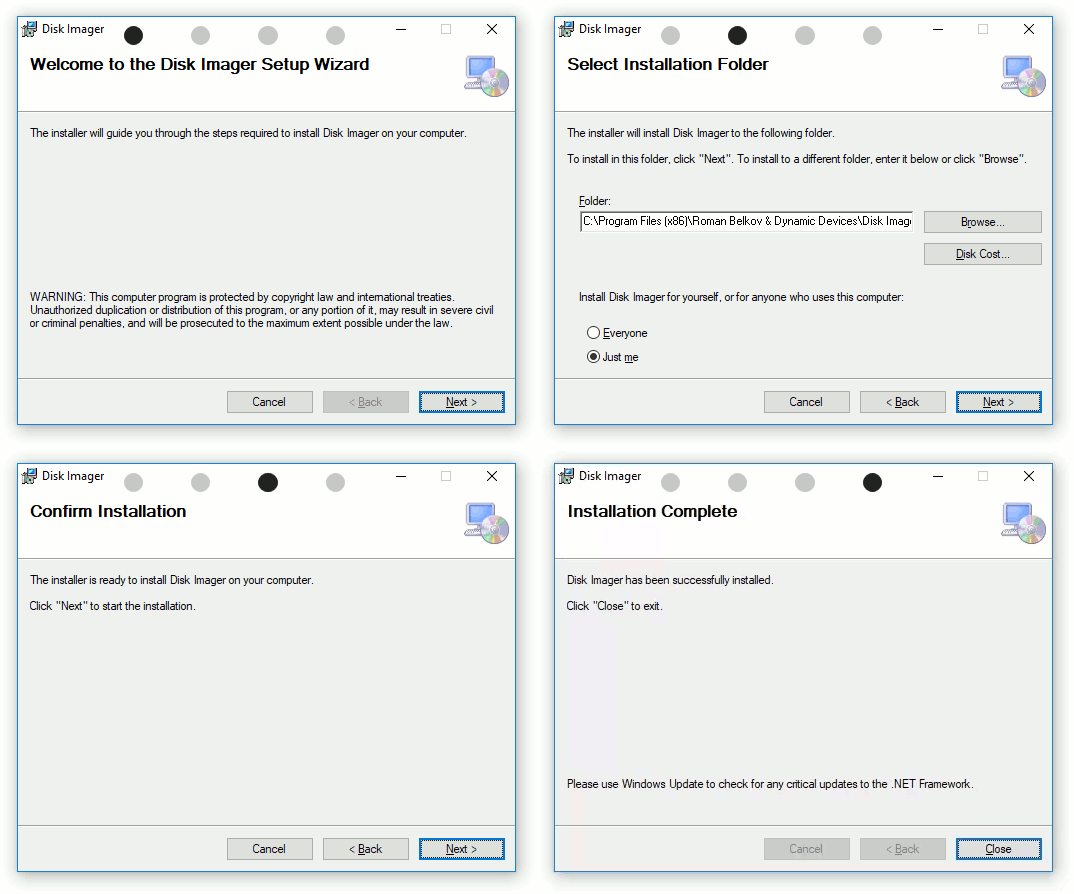
- Download and install DiskImager.
warning
Attention! You will need administrator permissions to install and use DiskImager.
- Remove the microSD card from the TRIK controller.
- Insert it into your computer using a card reader.
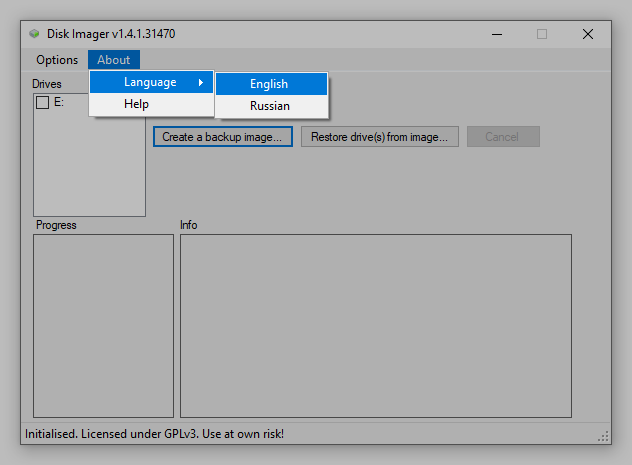
- Start DiskImager. To change the language, select
About → Languagein the menu.
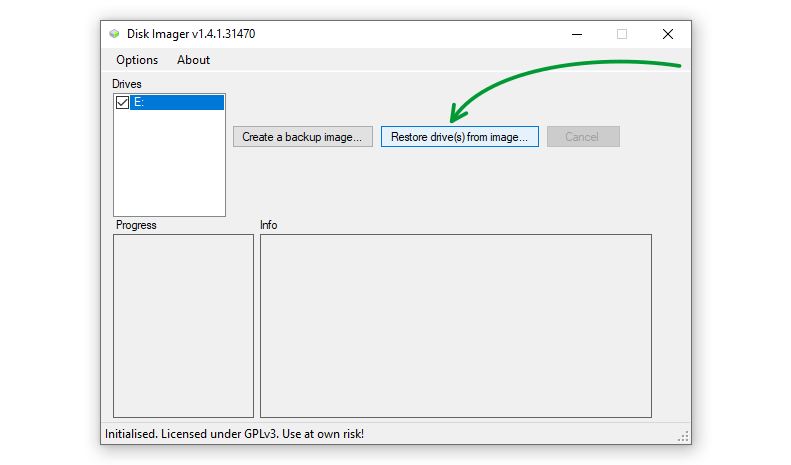
- Select the disk to write.
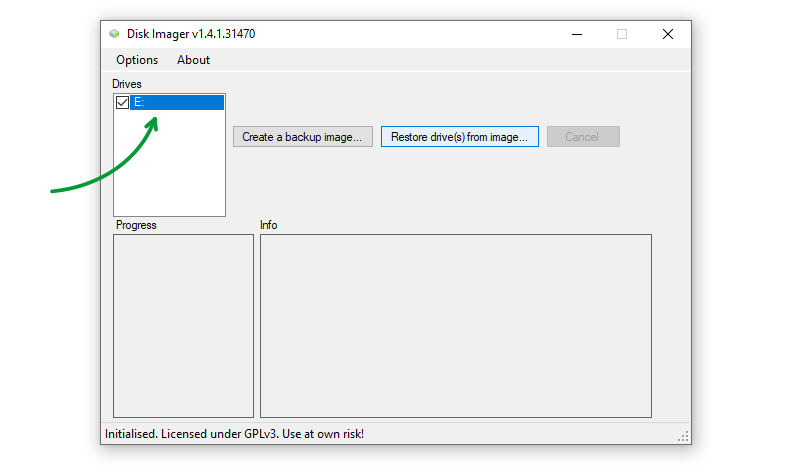
- Click the «Restore drives from» button.
- In the window that appears, filter the files by type
.xzand select the downloaded file.
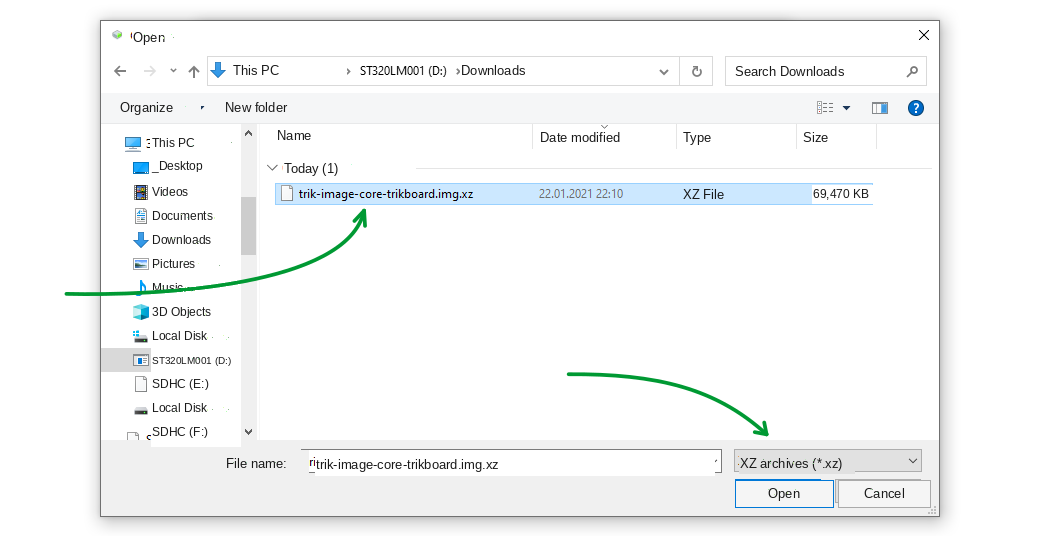
- Click "Open".
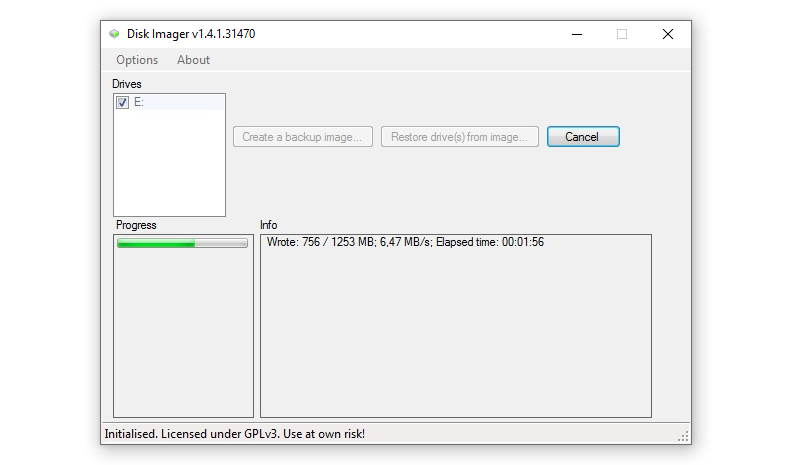
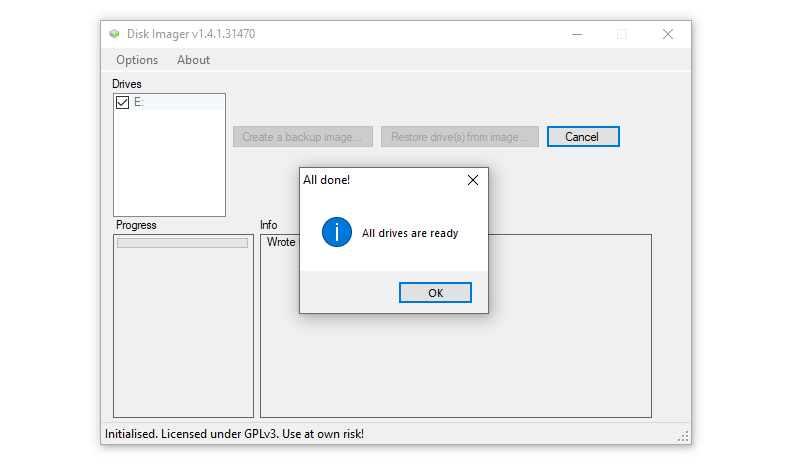
- Wait for the operation to complete.
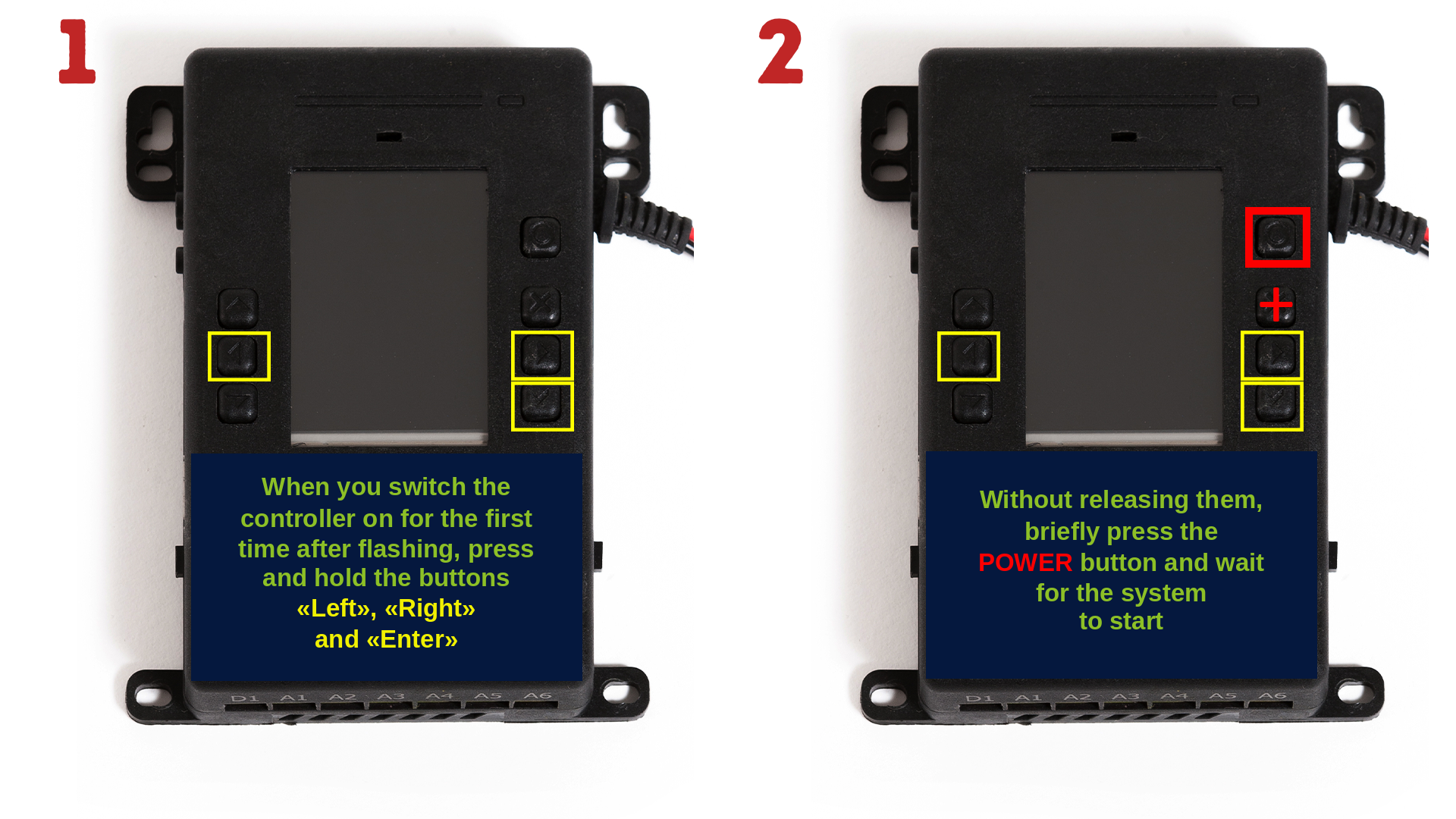
First startup of the controller after flashing
- Press and hold the "Left", "Right" and "Enter" buttons.
- Without releasing them, briefly press the power button.
- Wait for the system to start.
Linux
- Download the latest firmware image.
- Remove the microSD card from the TRIK controller.
- Insert it into your computer using a card reader.
- If the SD card has the correct partition table (the first partition is at least 2 GB, ext4 file system), then go to step 18.
- Get superuser (root) rights:
sudo -i
- Look at the devices that are currently connected to the computer:
fdisk -l
- Unmount all SD card partitions using the
umountcommand.
umount /dev/{first SD card partition}
umount /dev/{second SD card partition}
...
Example:
umount /dev/sdb1
- Select the inserted microSD card:
fdisk /dev/{device}
Example:
sudo fdisk /dev/sdb
- View the current partition table using the
pcommand.
p
- Remove all existing partitions using the
dcommand.
d
- Make sure that all partitions are removed:
p
- Create a new partition using the
ncommand.
n
- Leave all parameters, except the size, by default — press
Enter. For the request "Last sector, +sectors or +size{K, M, G}" specify+2G.
Command (m for help): n
Partition type:
     p     primary (0 primary, 0 extended, 4 free)
     e     extended
Select (default p):
Partition number (1-4, default 1):
First sector (4096-784932712):
Last sector, +sectors or +size{K,M,G}: +2G
- Create a partition on the remaining part of the SD card using the
ncommand. Leave all parameters by default.
Command (m for help): n
Partition type:
     p     primary (0 primary, 0 extended, 4 free)
     e     extended
Select (default p):
Partition number (1-4, default 1):
First sector (4096-784932712):
Last sector, +sectors or +size{K,M,G}:
- Check with the
pcommand what happened.
p
- Apply the changes using the
wcommand.
w
- Format the partitions using the
sudo mkfs.ext4commands.
sudo mkfs.ext4 /dev/{partition}
Example:
sudo mkfs.ext4 /dev/sdb1
sudo mkfs.ext4 /dev/sdb2
- Unmount the first partition using the
umountcommand.
umount /dev/{first SD card partition}
Example:
umount /dev/sdb1
- Unpack the downloaded firmware image using the Archive Manager.
- Copy the unpacked image to the SD card using the
ddcommand.
sudo dd bs=4M if=trik-base-v2-trikboard.ext4 of=/dev/{first partition}
Example:
sudo dd bs=4M if=trik-base-v2-trikboard.ext4 of=/dev/sdb1
Ubuntu
к сведению
Instructions for version 14.04 and older.
- Download the latest firmware image.
- Remove the microSD card from the TRIK controller.
- Insert it into your computer using a card reader.
- Open the location of the downloaded firmware image in the file manager.
- Call the context menu by right-clicking on the archive and select the first item "Open in 'Create bootable disk'".
- From the drop-down menu, select the drive to which you want to burn the firmware. Then click "Start Restoring…".